How to setup domain names from freenom on your blogger blog

Freenom free domain name

Hey guys recently I publish an article HOW TO GET FREE DOMAIN NAMES FOR YOUR WEBSITES and in that article i showed you how to buy a free domain name but after buying it you must install it on your website. So in this article I am showing you how to properly install a custom domain name from freenome on your blogger blog. I have explained all the steps in this article very clearly using screenshots such that even non techy guys can simply understand.

Please note: You must be patient while setting this because many error can occur!! 

Now just follow my steps

Freenom free domain name
  • Now your domains will be listed below from it click the manage domain option 
Then click on sign up as developer option.Sign up as usual

  • Now you will see a number option from it click on the manage freenom DNS option
Then click on sign up as developer option.Sign up as usual

Now the next step is important
  • click on the + more record option from your window and enter the following address under target option.
  • 216.239.32.21
    216.239.34.21
    216.239.36.21
    216.239.38.21
  • Select type A      
  • Do not enter anything under the name
Check this image to know that if you entered it on the correct place
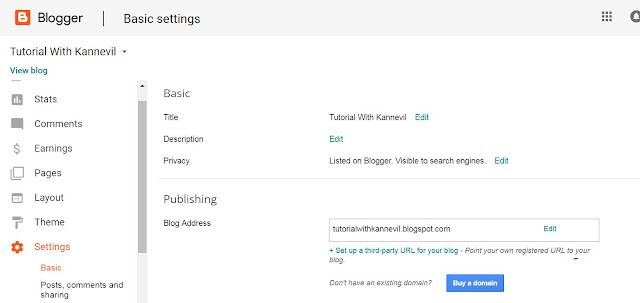
  • Do not close it. after opening a new tab go to your blogger account and under your blog address click on the +Setup up a third party URL for your blog option  
freenome free domain name blogger

  • Now enter your freenom domain name and click on the save button 
  • At first you will see an error message like this↓↓ But don't worry
  • Now go back to freenom and click + add more record select type CNAME and under the target copy and paste the Name,Label shown in the error window in blogger and destination target shown there and click save changes.
  • This is an important step as on this step google verifies your authority
freenome free domain name blogger
You must do like this
  • Now wait for few minutes usually it takes 5-7 minutes 
  • Now go back to your blogger account and enter your domain name and select the redirect option this time you will not receive any error messages.
freenome free domain name blogger
  • Now under HTTPS turn on HTTPS redirection.
freenome free domain name blogger

That's it you have successfully completed the process any error occurred please comment below 

How to get free domain names for your websites


Usually domain names are not free,there are many websites like godaddy.com from where you can buy a domain names.But here in this article i will show you how to buy domain names for free of costs.

If you are a using google's blogger then you will definitely need this because by default you are getting a domain name starting with .blogspot.com and you your domain name will not start with www.

Now here is the solution using freenom you can get a domain names starting with www and ending with .tk, .ml, .ga etc. Just follow my instructions ⇓


  • Now go to services and select register a new domain.

  • Type your desired domain name without extensions and click check availability button.
  • Now you will see a number of extensions marked under free and click get it now for your desired extension

  • click get it now for your desired extension and now select checkout

  • Now select 12 months @ free option and click the continue button.After 12 months are over can buy another domain name for free using this method.
  • Now enter your details and click checkout.

  • Then the next window you can see an order confirmation dialogue box and your domain name registration is complete.


That's all guys now go and install your new domain name for your website
I will soon made another article regarding how to install this on your website.
hope this was an useful article if yes comment below.


How to add custom theme to your blogger blog


Hey guys I am back after a short break to blogging.This time i am bringing a blogging tip "How to add custom theme to your blogger blog".Although blogger is having some pre-installed blogger theme we may get bored after using it for some time and unlike wordpress blogger is only having a couple of themes to change with.

But now here is a solution you can now change your blog's theme from a ocean of selections by simply downloading some html codes and installing it on your site. Now follow my steps.↧↧

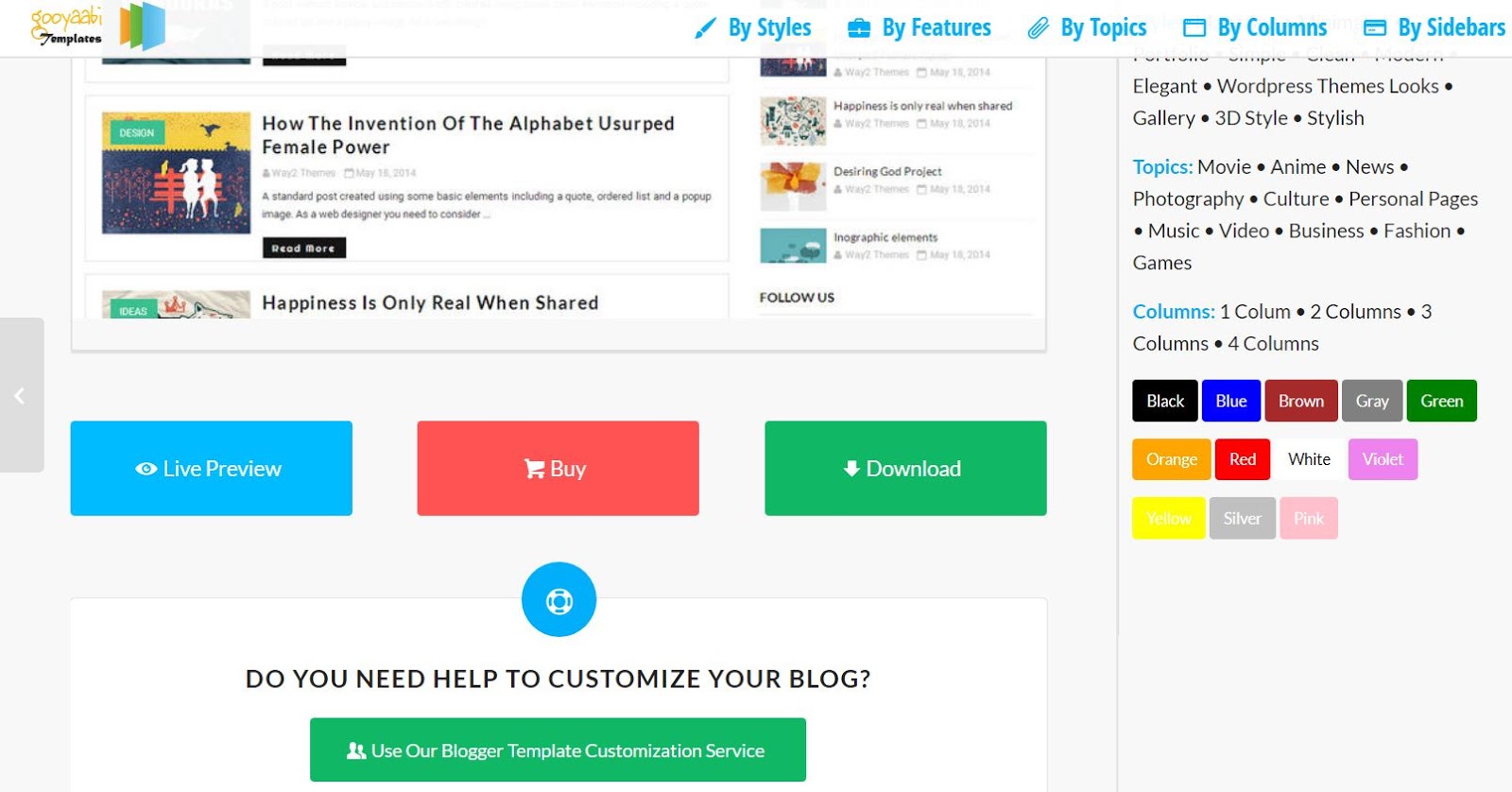
  • First go to any of the following sites(Many alternate site links are provided below)

  • Now select a theme after previewing and click the download button.

  • Now a zip or a Rar file will be downloaded so extract it first.

  • After extracting it you may find a number of files from which find the xml file

  • Now open your blogger and go to your theme tab and select the backup and restore option
  • A popup window appear(First click the download theme option from here if you don't have a backup for your site)

  • Now click the choose file button and select the xml file which you have downloaded and click the upload button.
  • Wait for a few seconds and your new theme is installed on your blog.

  • Now go to your layouts tab and spend some time to arrange your site according to your need.
  • If you are having some knowledge about coding you can directly edit your xml code.

That's all with some simple steps you can now edit your blogger blogs theme from the tons of themes that are available online. Enjoy 👊👊

Earn money by blogging without adsense approval


You heard it right you can start earning money from your blog the next second without waiting for any kind of approvals like adsense. It's too hard to get an adsense approval then why still running behind it if you have an easy method for monetizing your blog. We are going to use Ayboll for displaying ads on our page instead of adsense. Its works on pay per click the more users click on your ads the  more money you will earn

Just follow this steps


  •  Then provide your email id and a password for your account.


  • After completing your sign up you will reach a page like this ↧↧↧
  • Now click on my widgets under the publish tab. 


  • Now click on the create widget button

  • Now select the type of layout which most suits your site


  • Customize it so that it can easily blend on your site.
  • Scroll to the bottom of the site and click the get code butoon.
  • Now copy and paste your code to your website under the head tag.

  • If your code is correctly installed can see its status in green color as active.

  • Just go to your site it has already begin to show ads and you will earn according to the users click in those ads.
Hope! You find this article useful if you face any difficulties don't forget to tell us.

How to locate your device just by using Google account

locate phone using google account find my device

Google find my device is pre-installed on every android devices by google. You can use this method to track/locate your device anytime,anywhere you want. This is a very useful trick that most of people don't know. You are able to access this by either installing an android app to any of your device and sign in to the same google account which is used by the device you want to locate or use a browser on your pc to sign into your google account.

But before doing this you must be sure that

  1. Your device has an active internet connection and must be sign in to google 
  2. Google Location services must be turned on.
  3. Remotely locate this device and Allow remote lock and erase and must be turned on under the device settings.
After doing this just follow this steps

locate phone using google account find my device

  • After getting a screen like this just select the device you want to locate.
locate phone using google account find my device
  • Now you maybe asked to re-login to your account

locate phone using google account find my device


  • Now click on the locate button.
locate phone using google account find my device

  • That's it your device is located within seconds. You can zoom in this map and view its exact position.

Bonus Trick 

  • By using find my device you are able to lock your device remotely anytime anywhere. You can add a message to your lock screen. 


    locate phone using google account find my device

    • Lol you can also erase your whole device using find my device so that anyone accessing it cannot access your private data.


    locate phone using google account find my device

    Hope you find this trick useful💁💁